How to Password Protect a Folder on Mac — Free Methods 2025
A complete guide to securing your sensitive files on macOS Sequoia, Sonoma, and Ventura. Learn how to use built-in tools like Disk Utility and Terminal, and when it makes sense to upgrade to dedicated Mac security software.
Editorial TeamUpdated: October 202514 min read
Quick Answer
Yes, you can password protect a folder on a Mac for free. While macOS lacks a simple "right-click to lock" option in Finder, you can achieve folder protection by using Disk Utility to convert the folder into an encrypted DMG file, or by using the Terminal command line to create a password-protected ZIP archive.
Before modifying how your files are stored, it is important to understand how macOS handles file security. Unlike Windows, which offers a built-in Encrypting File System (EFS) directly in the file explorer context menu, Apple relies heavily on encrypted disk images (.dmg files) and system-wide, full-disk encryption (FileVault).
macOS Version Compatibility Note
The methods outlined in this guide have been tested and verified across modern Apple operating systems:
macOS Sequoia (15.x): Fully supported. Enhanced privacy controls may prompt you for additional permissions when third-party apps attempt to lock folders or access iCloud Drive.
macOS Sonoma (14.x) & Ventura (13.x): Fully supported. Native Disk Utility and Terminal commands behave identically to older versions.
Platform Boundary: This guide covers how to password protect a folder on Mac exclusively. If you are looking to secure a USB drive on a PC, refer to our specific guides for Windows.
Interactive Guide: Choose the Right Protection Level
Not sure which method to use? Answer one question to find the best approach for your specific macOS needs.
What is your primary goal for locking this folder?
Result
How to Password Protect a Folder on Mac — 4 Methods
Here are the proven ways to restrict document access and secure your files on an Apple machine, starting with free native tools.
Disk Utility Folder Lock: Step-by-Step Guide for Mac
Difficulty:
(Moderate)
The most common native approach is using macOS Disk Utility. Instead of locking the folder directly in Finder, you convert the folder into an encrypted disk image (.dmg). To access the files, you double-click the DMG and enter your password, which mounts it like a virtual USB drive on your desktop.
Open Disk Utility (Press Cmd + Space, type "Disk Utility", and hit Return).
In the top menu bar, click File > New Image > Image from Folder.
Select the folder you want to password protect and click Choose.
In the "Encryption" dropdown menu, select 128-bit AES encryption (or 256-bit for maximum security, though saving large files will be slower).
Enter and verify your desired password. Crucial Warning: Deselect "Remember password in my keychain" if the prompt appears. If you leave it checked, your Mac will automatically unlock the folder for anyone logged into your user profile.
In the "Image Format" dropdown, select read/write. This allows you to add or remove files later.
Click Save.
Verification & Cleanup: Once the `.dmg` file is created, double-click it to verify you can open it with your password. After confirming it mounts successfully, you must manually delete the original unprotected folder and empty your Mac's Trash.
Password Protect Folder Mac Terminal (ZIP Archive)
Difficulty:
(Advanced)
If you prefer a compressed `.zip` file—especially useful for emailing or sharing—you can use the built-in Terminal. Note: The default macOS Archive Utility (right-click -> Compress) cannot create password-protected zips; it can only open them.
Open Terminal via Spotlight search.
Type cd followed by a space, then drag and drop the parent folder (where your target folder lives) into the Terminal window and press Return to change the directory.
Use the following command to compress and encrypt your folder. Replace SecureFile.zip with your desired filename, and FolderName with the exact name of your folder:
zip -er SecureFile.zip "FolderName"
Terminal will prompt you to enter and verify a password. The keystrokes will be invisible for security reasons while you type.
Mac OS Password Protect Folder via User Accounts & FileVault
Difficulty:
(Easy)
Many users ask: Is FileVault the same as folder password protection on Mac? No. FileVault encrypts your entire Mac hard drive. If your Mac is turned off or stolen, everything is secure. However, once you log into your macOS account, all your folders are decrypted on-the-fly and visible to anyone physically using your computer.
If you share a MacBook Air or MacBook Pro with family, the best free method is to ensure FileVault is enabled (System Settings > Privacy & Security), and create separate macOS User Accounts for each person. A standard user cannot view the files inside another user's Home folder.
Fixed or slow dynamic sizing; manual original deletion required.
Terminal (ZIP)
Hard
Excellent for Email
Requires command-line knowledge; no bulk editing inside ZIP.
Third-Party Security (Paid)
Dedicated App (e.g. Folder Lock)
Very Easy
Seamless Sync / Cloud
Requires software installation and paid license for full features.
What Dedicated Mac Apps Offer Over Native Tools
While Disk Utility is functional, relying on it for daily workflow becomes tedious. Upgrading to a third-party app designed for macOS changes how you interact with secure documents.
Instant Desktop Lockers
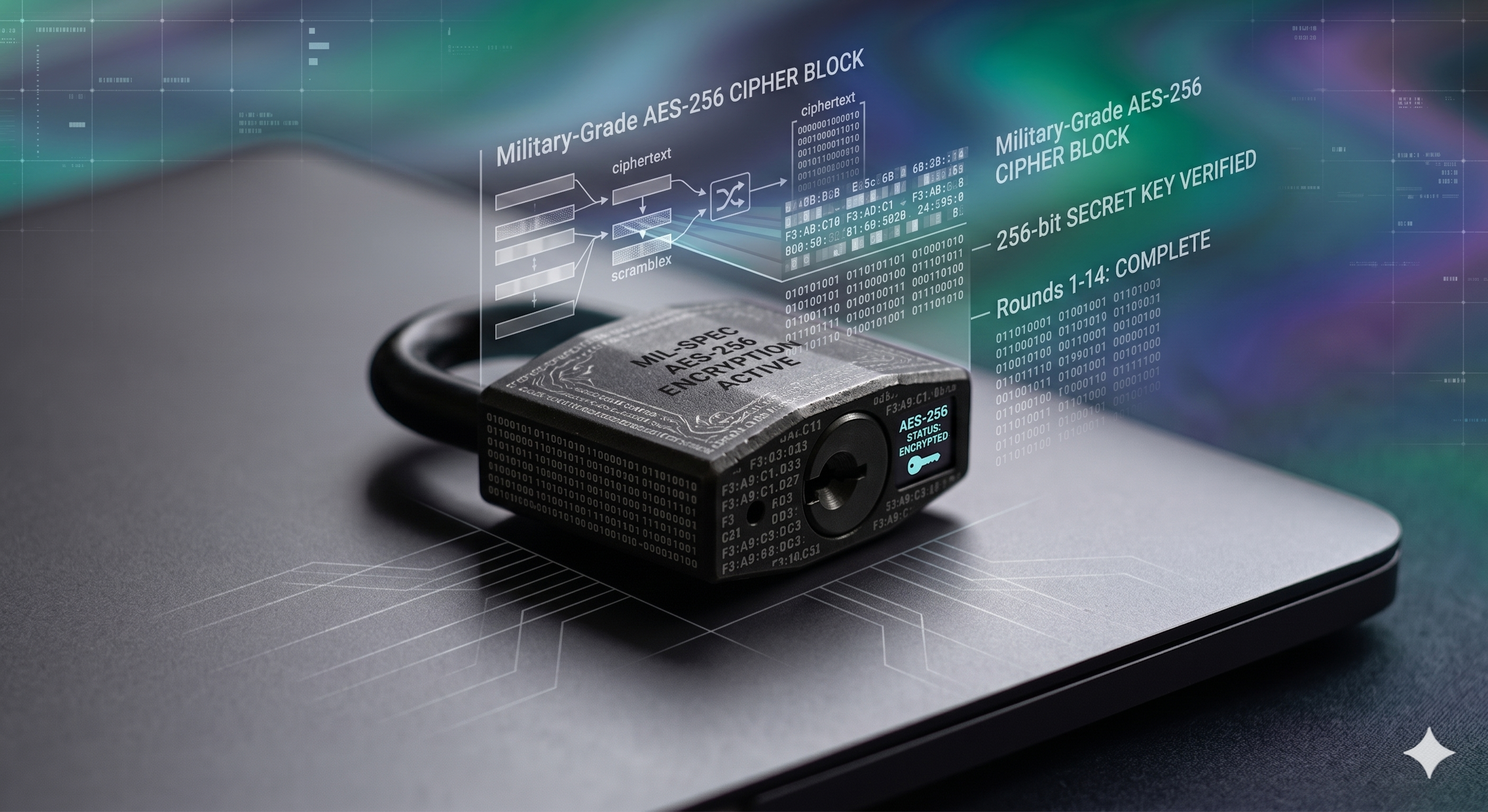
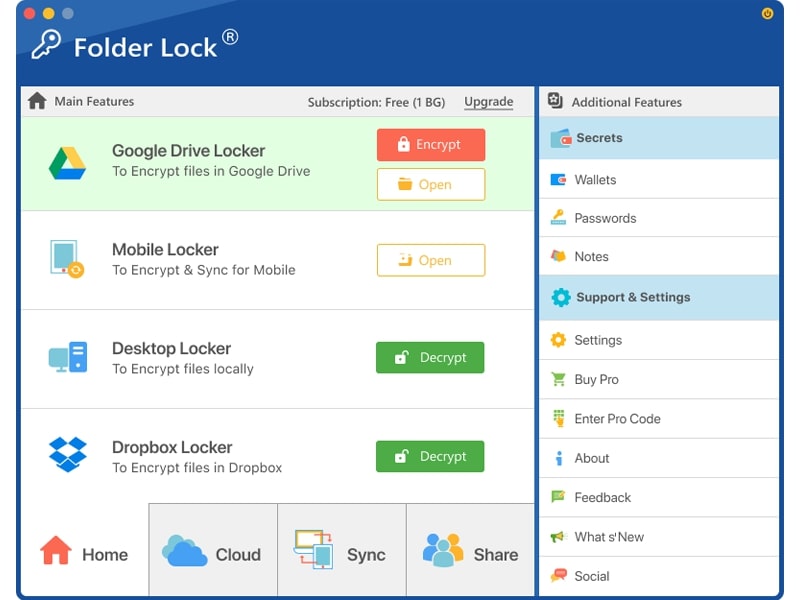
Instead of waiting for a DMG to mount, verify, and eject, dedicated software establishes a local vault on your Mac. You enter a master password once, and your files are instantly accessible. Close the app, and they are instantly secured again with AES 256-bit encryption.
Encrypted Cloud Syncing
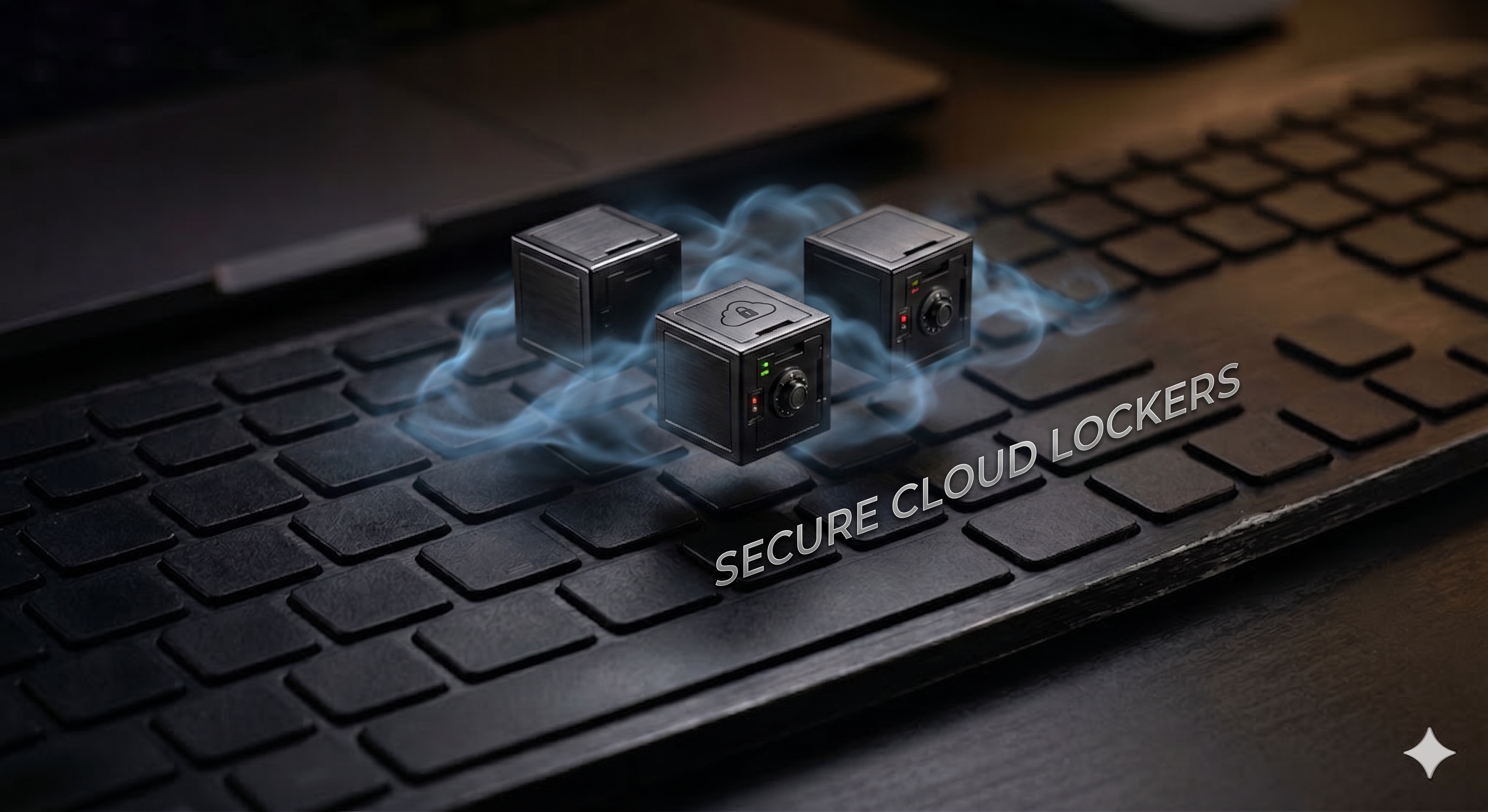
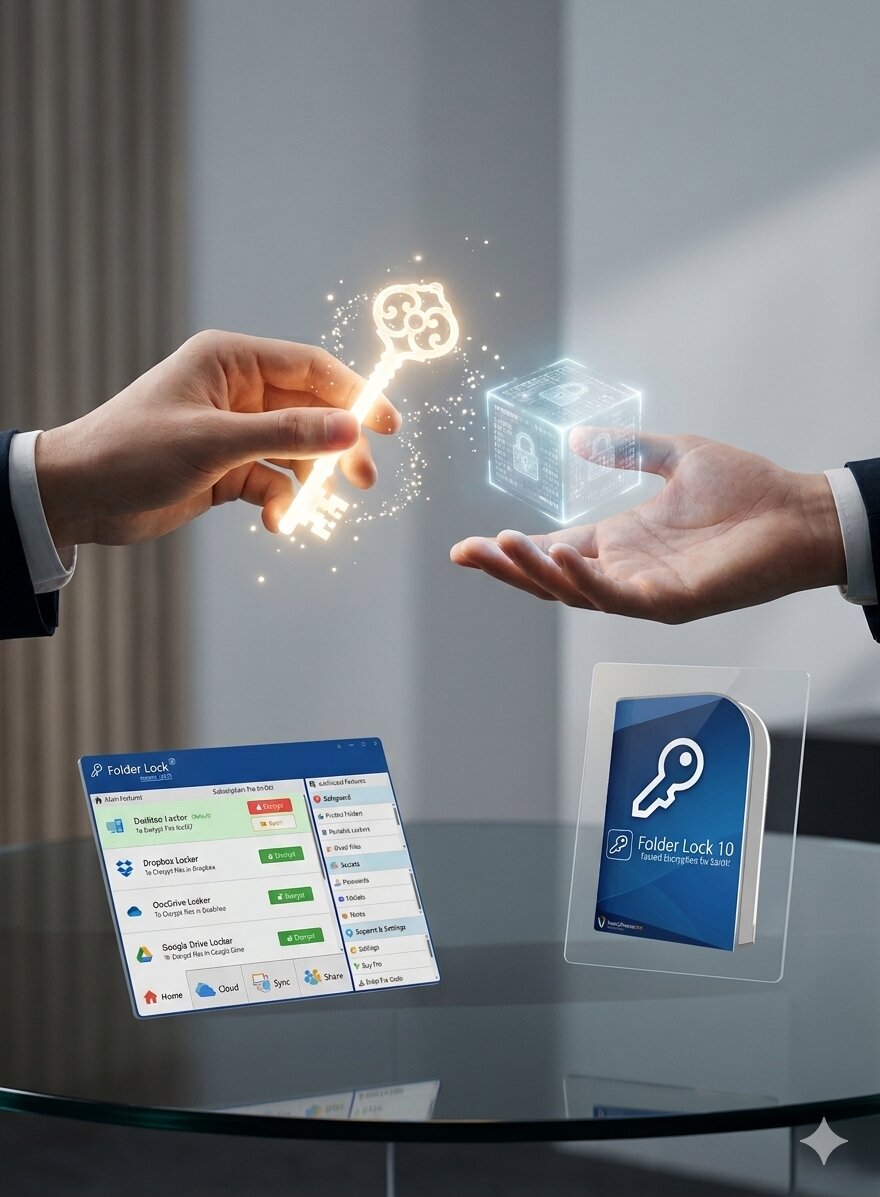
When you drop files into standard iCloud or Dropbox folders, they are synced unencrypted. Apps like Folder Lock allow you to create specialized DropBox, OneDrive, or Google Drive Lockers. Your files are encrypted locally on your Mac before they are uploaded, ensuring true privacy.
Cross-Platform Accessibility
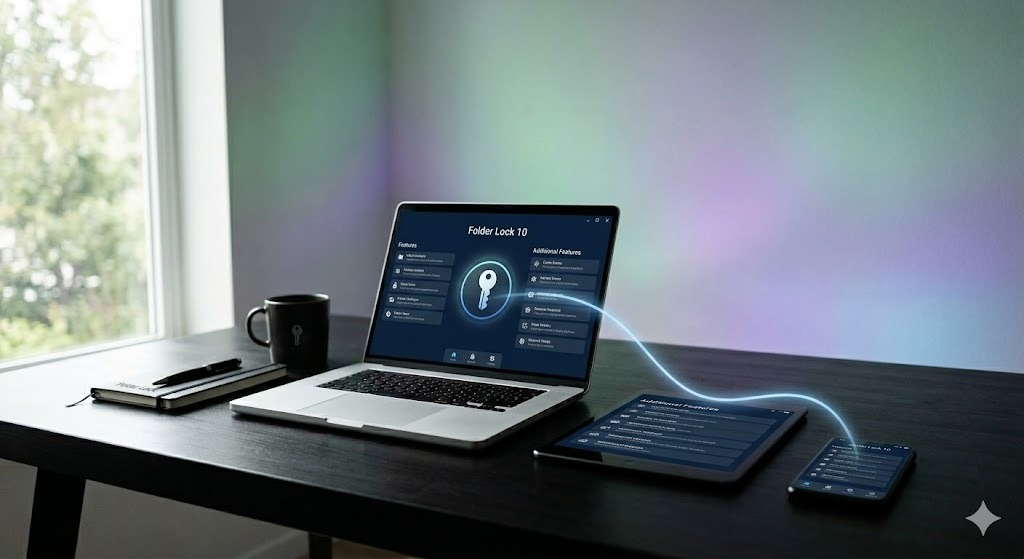
A Mac DMG file cannot be natively opened on a Windows PC or an Android phone. Premium software bridges this gap, allowing you to sync and decrypt your protected files across macOS, Windows, iOS, and Android devices using a unified master password.
Secure "Secrets" Vaults
Beyond just files, Mac users often need to secure text. Dedicated apps include encrypted modules specifically for securing credit card Wallets, Passwords, and private Notes, keeping them safe from keyloggers and unauthorized access.
The Tool We Recommend for Mac Users
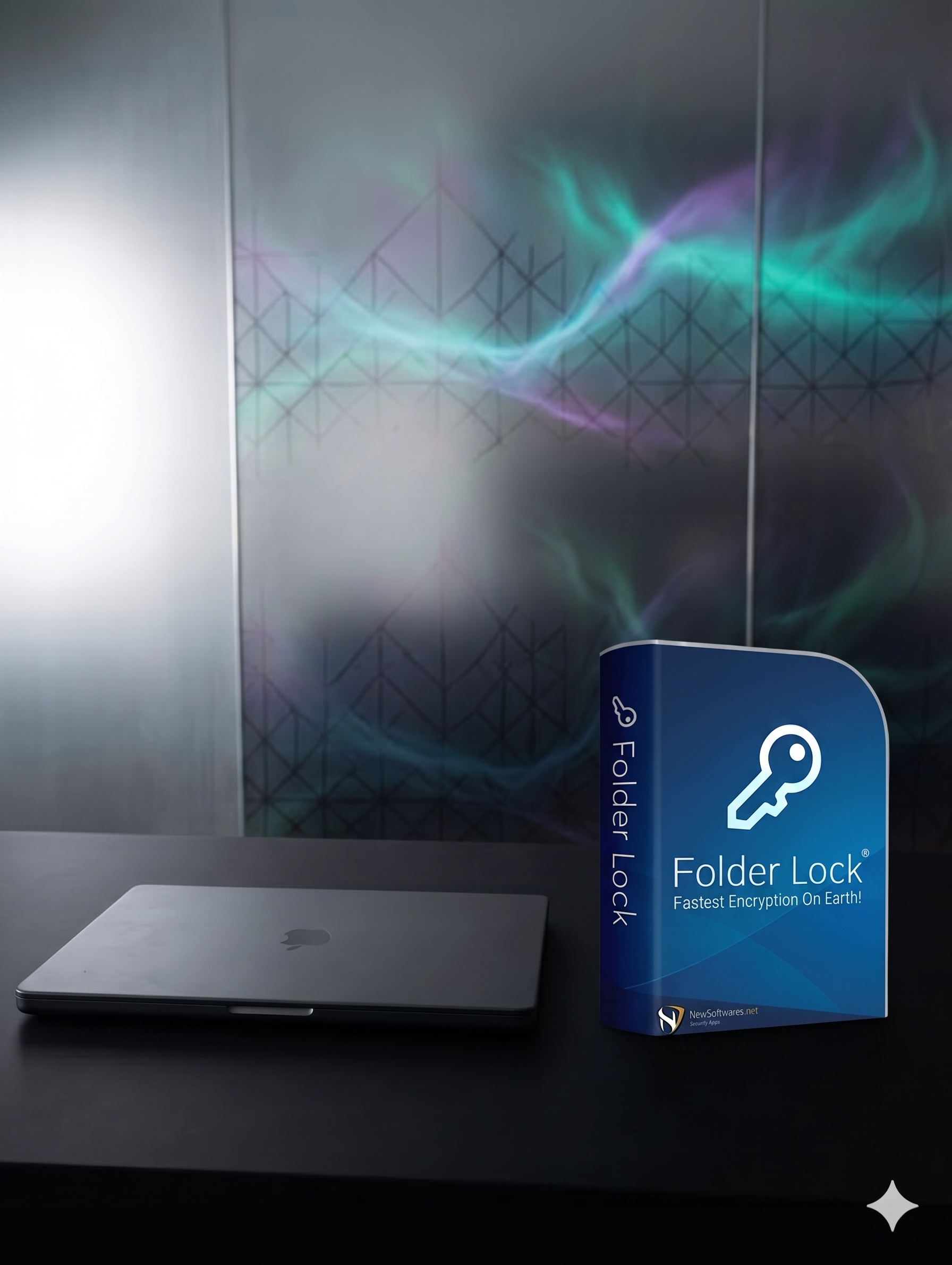
Of all the options we covered, if you manage sensitive files daily, we recommend Folder Lock for macOS. It bypasses the clunky DMG mounting process, offering instant AES-256 encryption, seamless cloud syncing, and cross-platform access.
When users ask "how to lock a document so it cannot be edited or copied" or "can I make a word document password protected?", it is vital to understand the difference between Open Passwords and Permissions Passwords.
Open Password vs Permissions Password — Explained
An Open Password encrypts the actual contents of the document. Without the exact password, the file reads as complete gibberish to the computer. This is what Disk Utility DMG creation and Folder Lock AES-256 do. It is highly secure.
A Permissions Password (often used in PDFs or Office files to "restrict document access" or "prevent document copying") does not encrypt the file. It merely sets a digital flag telling the PDF reader or Word app, "Please don't let the user print or edit this." Many third-party readers ignore permissions passwords entirely, meaning they offer virtually zero real security against intentional copying.
How to Share Protected Documents Safely
If you compress a folder into an encrypted ZIP using Terminal, you can email it safely. However, never email the password in the same message. Send the password via a secure, end-to-end encrypted messaging app (like Signal or iMessage) or via text message.
Cloud Storage and Document Security
People often ask: "Can I create a password protected folder in google drive?" Google Drive natively relies on account access permissions, not folder-level passwords. If you upload an encrypted DMG or ZIP to Google Drive, the files inside remain secure, but you cannot open or preview them in the browser. You may see errors like: "couldn't be opened for import. if the file is password protected, try removing the password" in Google Sheets. You must download the file back to your Mac to unlock it, unless you use a tool like Folder Lock which explicitly manages cloud-locker integration.
Troubleshooting & Owner Recovery
What to Do If You Forget a Document Password
We see queries like "how to crack folder lock password" or "remove password from a protected folder on Mac". If you used robust AES-256 encryption (via Disk Utility, Terminal, or a third-party app), there is no backdoor or simple crack tool. The encryption is mathematically designed to be unbreakable without the key.
Owner-Safe Recovery Steps:
Check Keychain Access: If you used macOS Disk Utility and accidentally left "Remember password in my keychain" checked, open the Keychain Access app on your Mac and search for the name of your DMG file. Your password will be saved there.
Check App Master Keys: If you are using software like Folder Lock, verify if you set up a master recovery email or master password during the initial installation on your Mac.
Software Uninstallation: If you are looking for how to uninstall folder lock, legitimate security software requires the master password to uninstall safely without risking the vaulted data. Ensure you have unlocked and extracted your files before attempting forced removals.
Folder Lock Pricing & Features
While macOS native tools are free, they require manual management. Determine if a paid upgrade is worth it for your workflow.
Folder Lock Pro is available as a one-time license for $39.95.
What Mac Users Say
"If you have sensitive files this program is by far the best way to keep them covert on your desktop. I wouldn't be without it anymore as you can ensure the extra layer of security by making your data invisible."
Chris B. — Manager
"I have been using Folder Lock several years and have only had two problems, both my fault. The help department was very efficient in sorting these out for me on my Mac."
Leon H.
Frequently Asked Questions
Does Mac have a built-in folder password feature?
Not directly in the Finder right-click menu. Apple relies on system-wide FileVault encryption. To lock a specific folder, you must convert it into an encrypted disk image (.dmg) using Disk Utility.
How to password protect a folder on Mac Big Sur/Monterey/Ventura?
The process is identical across modern macOS versions. You use Disk Utility to create an "Image from Folder" and select 128-bit or 256-bit AES encryption.
Can I password protect a folder in Finder on Mac?
No, Finder does not have a native "lock folder" button. You must use Disk Utility, Terminal, or a third-party application to secure the folder.
Can a password-protected document be hacked?
If protected with AES-256 encryption and a strong, unique password, it cannot be hacked using brute force within a human lifetime. However, if you use a weak password or only use a "Permissions Password" in a PDF, it can be bypassed easily.
Password protect folder mac without disk utility?
If you want to avoid mounting DMG files via Disk Utility, you must either use Terminal to create an encrypted ZIP archive or install dedicated software like Folder Lock to lock directories in place.
Can I batch password protect multiple documents?
Yes. If you place all documents into a single folder and encrypt that folder using Disk Utility or Folder Lock, you effectively batch-protect them. Dedicated apps also encrypt files on-the-fly as you drop them into the secure vault.
The Bottom Line
If you only need to secure a single archive of tax documents once a year on your Mac, the native Disk Utility method is perfectly sufficient. If you need to email a secure file, use the Terminal ZIP method.
However, if you handle sensitive office files daily, require cross-platform access, or want to instantly lock and sync directories to the cloud without managing clunky DMG files, a dedicated third-party tool is highly recommended.